
Owli-AI Assist
Analyze scenes, read text, ask follow-up questions, and hear answers with profiles for overview, detail, and OCR.
Your visual assistance system with AI support.
Quick overview
- Helps with
- Analyze scenes, read text, ask follow-up questions, and hear answers with profiles for overview, detail, and OCR.
- How to use it
- Open the app, choose the relevant function, and use the on-screen or speech output guidance.
- Good to know
- Assistive features can help, but they do not replace personal checks in important or safety-critical situations.
Cloud mode highlights
- Capture a snapshot and send it as a VLM request.
- Ask context-aware follow-up questions without restarting.
- Use auto-scan for regular scene updates.
- Enable voice input for hands-free operation.
- Use streaming TTS for fast feedback.
Core features
-
Scene description with current VLM profiles
Assist offers selectable profiles for quick scene overview, detailed description, and faithful reading of documents, signs, labels, and displays.
-
Owli backend by default
In the normal production mode, AI requests are handled by the Owli backend. Advanced users can optionally use direct OpenRouter BYOK.
-
Local Gemma 4 as an expert option
On suitable devices, a local Gemma 4 model can be downloaded and selected as a transport. The backend remains the recommended default.
-
Follow-up questions with image context
After capturing a scene, you can ask targeted follow-up questions without restarting. The original scene image remains available as context.
-
Additional images for context
If needed, you can attach additional images to an active session, for example for close-ups, another angle, or additional text areas.
-
Auto-scan
Profiles can support recurring automatic scene checks, for example for short status updates or repeated scene refreshes.
-
Voice input and streaming TTS
Questions can be dictated, sent immediately, or edited first. Answers can start playing early via streaming text-to-speech.
-
TalkBack-oriented operation
The interface is designed around simple operation, large controls, focus guidance, and screen reader use.
-
Report AI answer
Problematic AI answers can be reported directly from the app without sending image data.
-
Photo as song video
Assist can create a short English song from a captured or imported picture and share the result as a video.
Privacy
Operating mode: Cloud
Assist processes AI requests through the Owli backend by default. The live camera preview runs locally; image and question data are only sent after an explicit user action. Direct OpenRouter BYOK and local Gemma 4 are optional expert features.
In short
- AI features send image or question data to the Owli backend or a model provider.
- The live preview runs locally where possible.
- Full details are available in the privacy policy.
For backend follow-up questions, the original scene image is sent again so the answer can be generated with image context. Reports about problematic AI answers do not include image data and are currently stored for 30 days. Experimental song creation may use the Owli backend and external AI/music services.
Install directly on Android
Install the app from Google Play or scan the QR code if you are viewing this page on a desktop computer.

Open it quickly on your phone
Scan the QR code with your phone to open the store page directly.
System requirements
- Android 10 or newer
- Camera and microphone
- Stable internet connection for backend and OpenRouter modes
- For local Gemma 4: suitable device, enough memory, and about 2.6 GB of storage for the model
Details and usage
Who is Owli-AI Assist for?
Owli-AI Assist is designed for blind or severely visually impaired people who want to better understand their surroundings, text, displays, or objects using artificial intelligence. It does not replace personal assistance or personal checks in safety-critical situations, but it can provide additional information in many everyday situations.
The app is designed for simple operation, large controls, voice input, speech output, and TalkBack use.
What does Assist do?
Owli-AI Assist works as a visual assistance system:
- The camera shows a live preview.
- You explicitly capture an image with New Scene.
- Assist sends the image to the selected AI transport.
- The answer is displayed as text and can be read aloud.
- You can ask follow-up questions or attach additional images.
Typical questions include:
- What is in front of me?
- Read the text on the sign.
- Which products or objects are visible?
- What is shown on the display?
- Are there obstacles, steps, vehicles, or other relevant areas?
Turn a photo into a song
Experimentally, Assist can also use a captured or imported picture as the starting point for a short English song. The result is prepared as a shareable video, so you can send it as an audio postcard through WhatsApp, Instagram, or other apps.
This is an AI-powered feature; results can vary and are not guaranteed to be perfect. Learn more on the Owli Song page.
Current AI profiles
Assist uses selectable VLM profiles optimized for different tasks:
- Quick scene overview: short, speech-friendly description with orientation and spatial layout.
- Detailed scene description: more details, orientation markers, and structured notes.
- Document/OCR: faithful reading of signs, documents, labels, tables, or displays.
- Special short-status profiles: for short updates or auto-scan-supported scenarios.
Depending on the profile, image size, compression, model, token limits, streaming, and response style are adapted.
Follow-up questions and additional images
After capturing a scene, you can ask follow-up questions without starting over. Assist keeps the original image as context so questions like “What is written on the left sign?” or “Read the lower section” are possible.
You can also attach additional images, for example a close-up, another angle, or additional text areas.
Auto-scan
Some profiles support auto-scan. Assist can then analyze new camera frames at regular intervals and provide short updates. Auto-scan is an additional, cautious source of information and does not replace safe orientation aids or personal checks.
Voice input and speech output
Questions can be dictated. A short tap can dictate and send immediately; a long press can dictate and edit before sending. Answers can start playing early through streaming TTS while the full answer is still arriving.
The last answer can be replayed, and speech output can be stopped.
AI transport: backend, OpenRouter BYOK, and local Gemma 4
In normal production mode, Assist uses the Owli backend. This is the recommended default and requires no user setup.
Advanced AI settings offer additional expert options:
- Direct OpenRouter BYOK: store your own OpenRouter key, import it by QR code, and use it directly from the device.
- OpenRouter key info: when a direct OpenRouter key is active, the app can show key limit, usage, and expiration information.
- Local Gemma 4: on suitable devices, a local model can be downloaded and used as a transport. The app checks device suitability, storage, and model status.
Accessibility-focused operation
Assist is designed around TalkBack and simple smartphone use:
- large central controls for camera, microphone, and playback
- Reset instead of unintended recapture while a scene is active
- focus guidance after scene capture and voice input
- profile changes only when no request is running and no active scene is locked
- clear states for capture, speech recognition, and running requests
- portrait and landscape layouts with adapted controls
Report AI answer
If an answer is problematic, it can be reported directly in the app. The report includes the answer, a category, your optional comment, and limited technical metadata. Image data is not sent with the report.
Privacy and processing
The live camera preview runs locally on the device. Data is only sent when you actively use an AI function, for example New Scene, a follow-up question, an additional image, or song creation from a selected photo.
In the default setup, Assist processes requests through the Owli backend. For backend follow-up questions, the original scene image is sent again so the AI can answer with image context.
Experimental song creation may use the Owli backend and external AI/music services. The result can then be shared as a video through the Android share sheet.
In optional Direct OpenRouter BYOK mode, the app sends requests with your stored OpenRouter key directly to OpenRouter. Depending on the feature, this can include the scene image, question text, and additional image attachments.
In optional local Gemma 4 mode, inference runs on-device if the model is ready and the device is suitable. Other app functions, such as help pages or feedback, may still use internet access.
If you use Report AI answer, report data is sent to the Owli backend without screenshots or image files and is currently stored for 30 days for review.
The full version is available in the Owli-AI Assist privacy policy.
Media gallery
-
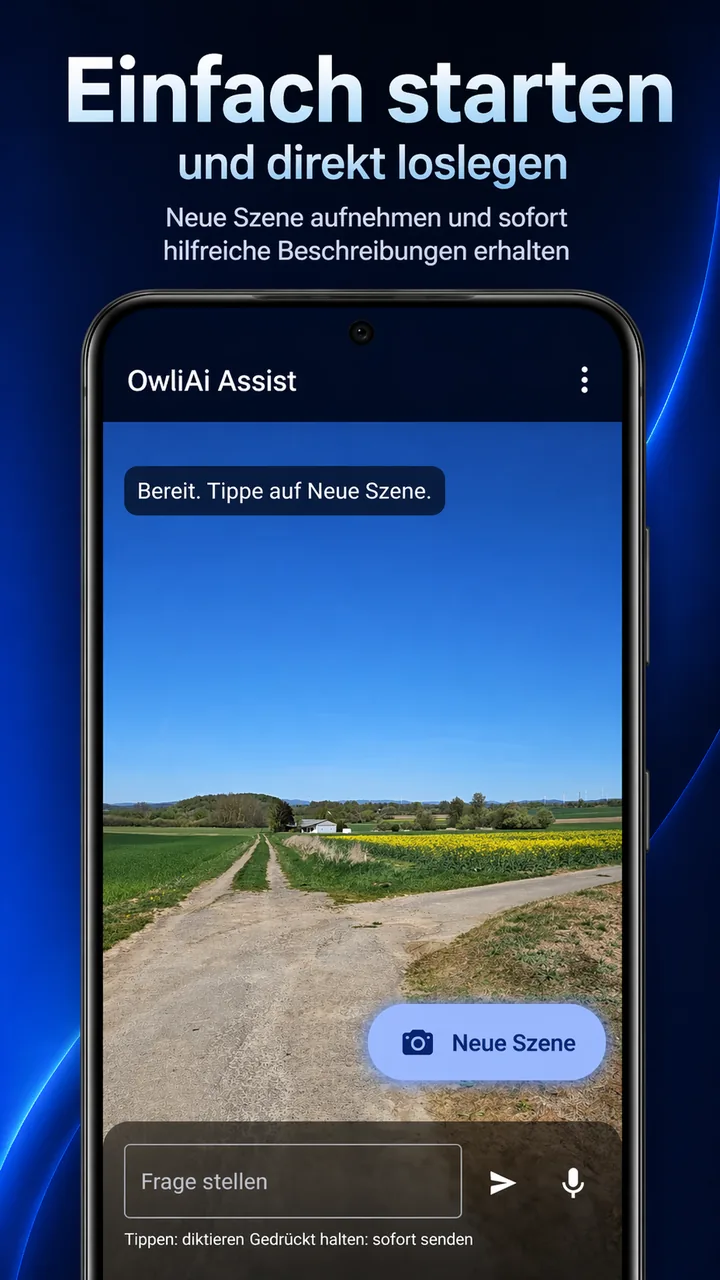
Start screen for a new scene analysis -
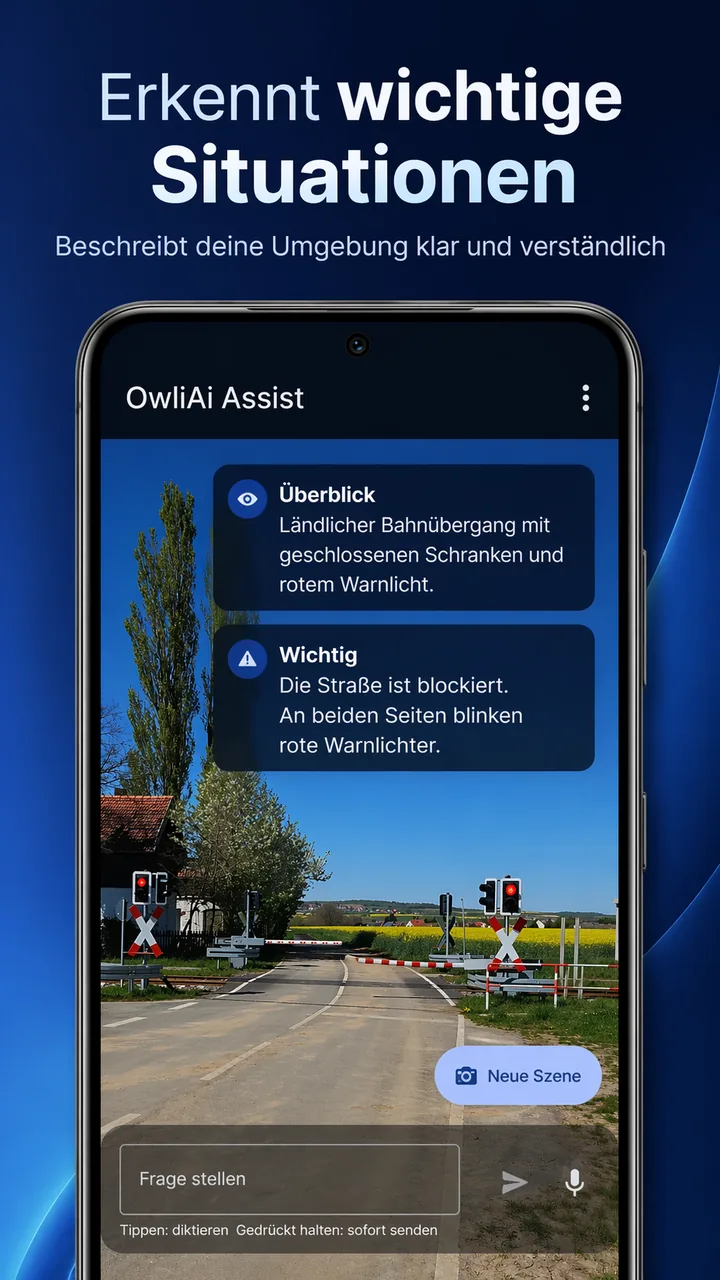
Structured description of a traffic situation -
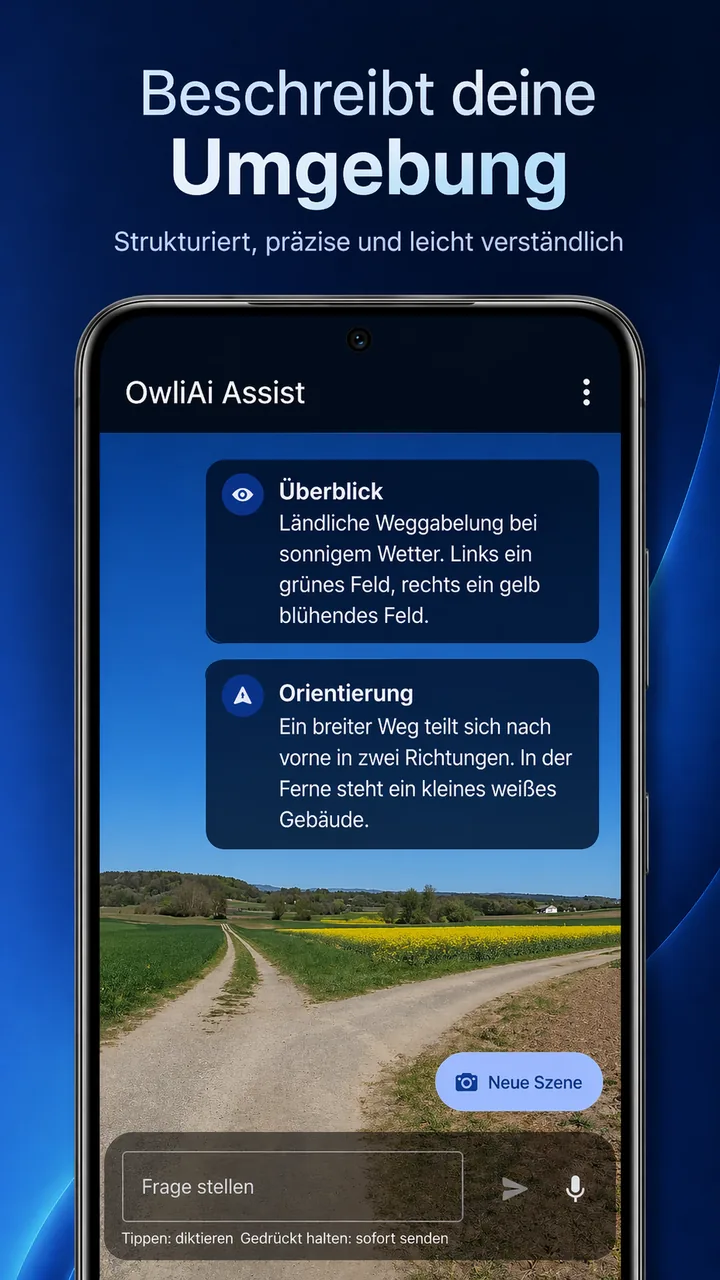
Orientation guidance for paths and junctions -
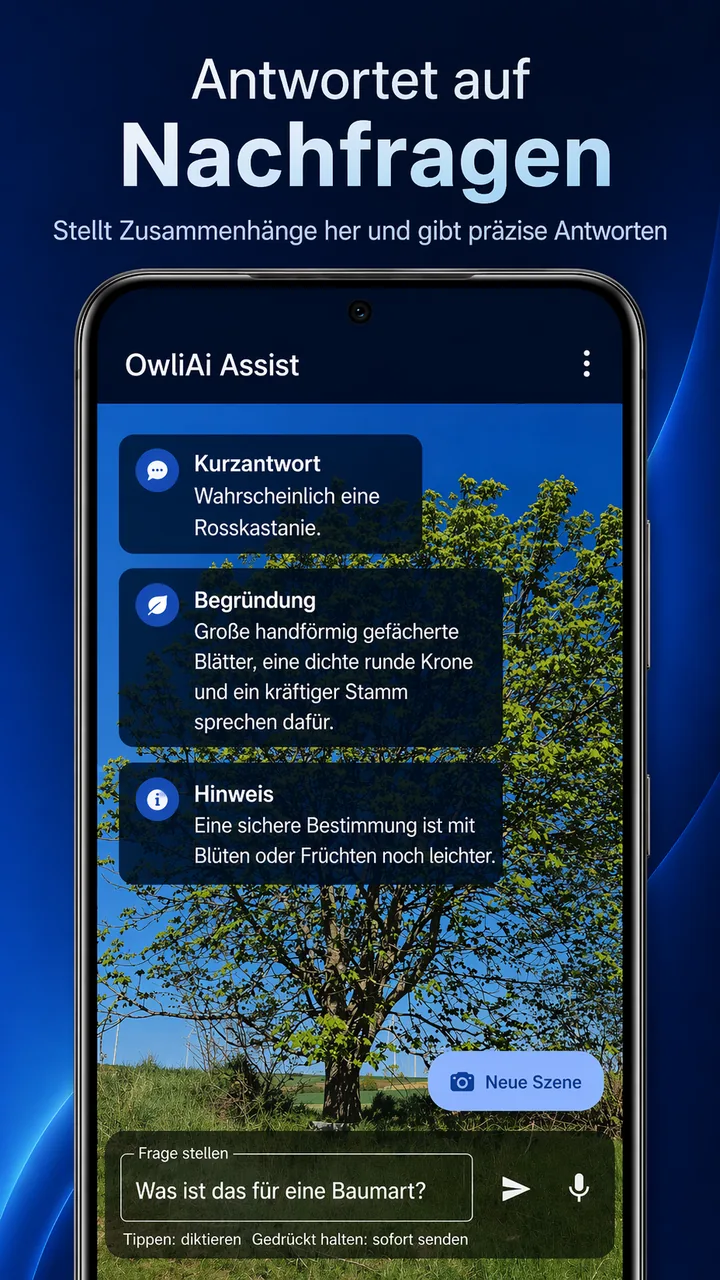
Follow-up questions with image context and grounded answers -
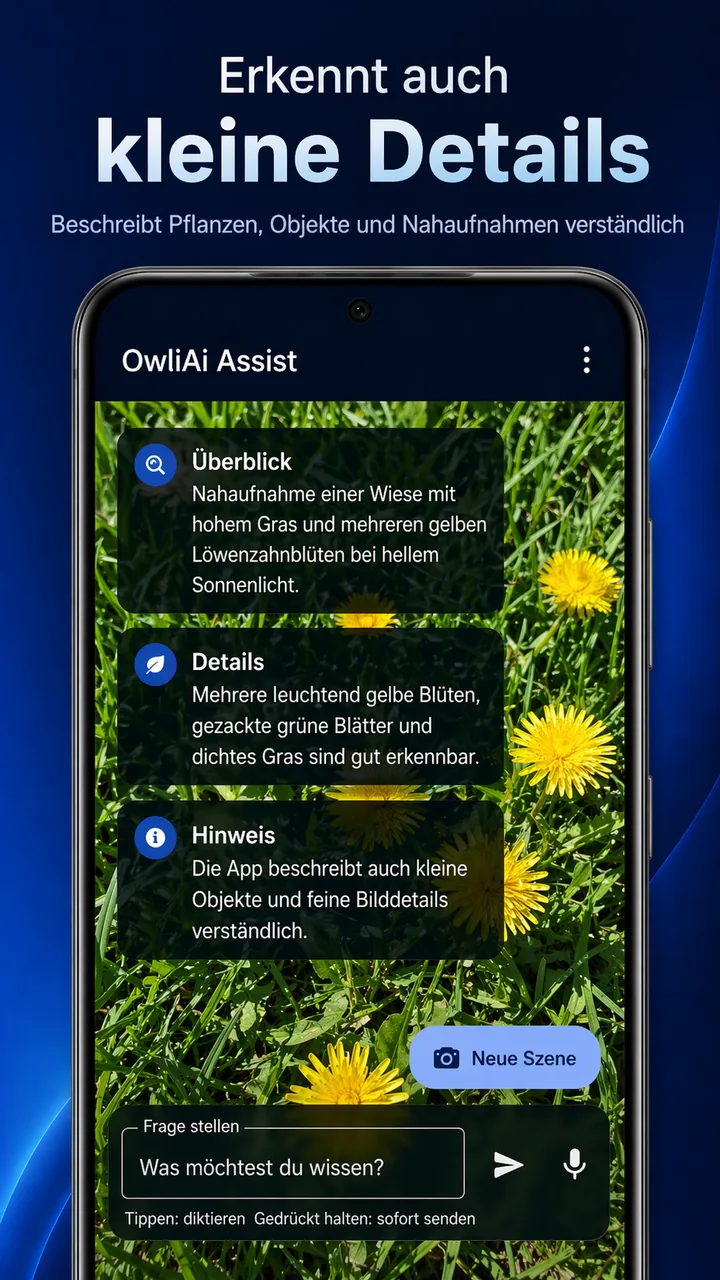
Understandable descriptions of small details and close-ups
Next step
Store release, trial access, questions, or partnership: we respond in a structured and timely way.